The long awaited release of Service Manager Authoring Console has been released. With authoring console, we can now easily create & customize forms and workflows in Service Manager.
Download link is provided below.
http://www.microsoft.com/downloads/details.aspx?FamilyID=40b8f1b7-da63-46ae-9ca4-ef007fc3cb29&displaylang=en
16 August 2010
05 August 2010
Remote Configuration Manager Console cannot view advertisements
When you install Configuration Manager console on a remote machine, you will not be able to view the advertisements from the console.

Thanks to the following article which enlightened me on what I should do to rectify this issue.
http://blogs.technet.com/b/configurationmgr/archive/2010/03/11/fix-no-advertisements-are-listed-in-the-sccm-console-on-a-remote-machine-but-they-do-show-up-on-the-site-server-itself.aspx
Apparently, a file AdminConsole.xml which defines the viewing rules for the SCCM console has an incorrect query to retrieve the Advertisements.
Incorrect Query :
SELECT * FROM SMS_AdvertisementInfo WHERE NOT (AssignmentID = NULL) ORDER BY AdvertisementName
Now instead of installing the hotfix, I did it in a much faster way since it's just modifying the xml file.


Thanks to the following article which enlightened me on what I should do to rectify this issue.
http://blogs.technet.com/b/configurationmgr/archive/2010/03/11/fix-no-advertisements-are-listed-in-the-sccm-console-on-a-remote-machine-but-they-do-show-up-on-the-site-server-itself.aspx
Apparently, a file AdminConsole.xml which defines the viewing rules for the SCCM console has an incorrect query to retrieve the Advertisements.
Incorrect Query :
SELECT * FROM SMS_AdvertisementInfo WHERE NOT (AssignmentID = NULL) ORDER BY AdvertisementName
Correct Query :
SELECT * FROM SMS_AdvertisementInfo WHERE NOT (AssignmentID IS NULL) ORDER BY AdvertisementName
Now instead of installing the hotfix, I did it in a much faster way since it's just modifying the xml file.
-
Open the XML folder location eg:C:\Program Files\Microsoft Configuration Manager Console\AdminUI\XmlStorage\ConsoleRoot
- Edit the AdminConsole.xml file (by opening it via NotePad)
- Search for the Incorrect Query (as mentioned above)
- Replace it with the Correct Query (as mentioned above too)
- Save the XML file
- Restart your console


02 August 2010
Root Management Server unavailable
This is more of a nooby posts, nevertheless I would still try to share it out to starters who have encountered this issue in their environment.
Got hit with this problem recently where out of sudden my RMS went unavailable and before you know it I got this alert .
 A quick check on my Event Viewer shows that I got tons of Event 2115 .

After a quick check on things, I noticed that something is amiss and it proved to be caused by my OpsMgr DB settings. Apparently by default, my OperationsManager DB has a file growth restriction and it seems that my DB hit the limit and thus no new monitoring data could be inserted into the Database.

Just go over and set the File Size to unrestricted growth and that did the trick.

Got hit with this problem recently where out of sudden my RMS went unavailable and before you know it I got this alert .
 A quick check on my Event Viewer shows that I got tons of Event 2115 .
After a quick check on things, I noticed that something is amiss and it proved to be caused by my OpsMgr DB settings. Apparently by default, my OperationsManager DB has a file growth restriction and it seems that my DB hit the limit and thus no new monitoring data could be inserted into the Database.

Just go over and set the File Size to unrestricted growth and that did the trick.

10 May 2010
Error Accessing ACS Reports: Cannot create connection to data source
This is something that I wanted to share out for quite some time but it just flew out of my mind until I got hit with this problem recently that I force myself to blog it NOW before I suffer from memory lapse syndrome.
Now, a bit of background here; the OpsMgr environment that I am working in has RMS, DB, DW + Reporting, ACS Collector & ACS DB all deployed into 5 different servers. Now with best practice in mind you would normally have a Data Reader/Data Write account created for your Data Warehouse action accounts. However the same was not stressed with the ACS Database. So what entails then?
So now you have successfully uploaded the ACS reporting components to the Reporting Server you would thought that you are ready to generate the ACS reports? Well, not exactly because you will most likely hit with your report giving you the following error.
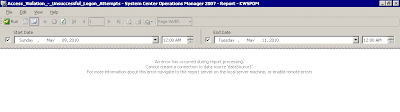
From the looks of things, it seems that your report has problems creating a connection to the data source. Now what could be the problem?
Because you have a specific Data Reader account that accesses your Data Warehouse tables/views but this does not apply to ACS Database and because your Data Reader does not have access rights to the ACS Database, your connection will fail.
What would be the workaround for this?
The workaround for this is relatively simple, you would just need to access the SQL Server Reporting Services for the Reporting Server via your internet browser.
For example: http://reportingservername/reports
Now, a bit of background here; the OpsMgr environment that I am working in has RMS, DB, DW + Reporting, ACS Collector & ACS DB all deployed into 5 different servers. Now with best practice in mind you would normally have a Data Reader/Data Write account created for your Data Warehouse action accounts. However the same was not stressed with the ACS Database. So what entails then?
So now you have successfully uploaded the ACS reporting components to the Reporting Server you would thought that you are ready to generate the ACS reports? Well, not exactly because you will most likely hit with your report giving you the following error.


From the looks of things, it seems that your report has problems creating a connection to the data source. Now what could be the problem?
Because you have a specific Data Reader account that accesses your Data Warehouse tables/views but this does not apply to ACS Database and because your Data Reader does not have access rights to the ACS Database, your connection will fail.
What would be the workaround for this?
The workaround for this is relatively simple, you would just need to access the SQL Server Reporting Services for the Reporting Server via your internet browser.
For example: http://reportingservername/reports
- From the SQL Server Reporting Services Home page, click on Audit Reports
- Inside Audit Reports, click on Show Details. You shall see DB Audit appears on the screen
- Click on DB Audit to launch the setting properties
- Scroll down to Connect Using, and select Credentials stored securely in the report server
- Enter the User credentials that has access to the ACS Database.
- Click Apply to store the settings.
21 April 2010
Service Manager 2010 has RTMed !!!
Just moments ago, Service Manager 2010 has been RTMed. A product which is very dear to my heart, I have been working on it since its Beta1 days and now with the RTMed version I am happy to see such a wonderful product being shipped to the end user.
http://blogs.technet.com/servicemanager/archive/2010/04/20/announcing-system-center-service-manager-2010-rtm.aspx
http://blogs.technet.com/servicemanager/archive/2010/04/20/announcing-system-center-service-manager-2010-rtm.aspx
Subscribe to:
Posts (Atom)