Just moments ago, Service Manager 2010 has been RTMed. A product which is very dear to my heart, I have been working on it since its Beta1 days and now with the RTMed version I am happy to see such a wonderful product being shipped to the end user.
http://blogs.technet.com/servicemanager/archive/2010/04/20/announcing-system-center-service-manager-2010-rtm.aspx
21 April 2010
02 April 2010
UNIX Noob trying to deploy OpsMgr to monitor Sun Solaris
The title says it loud and clear ... me being a UNIX noob learnt some new stuffs today.
Mission Objective: Deploy OpsMgr to monitor Sun Solaris
Target Environment: Sun Solaris 10
Mission Target: Monitor Sun Solaris 10 OS & Oracle DB running in it.
So to start things, make sure that the Sun Server met the following requirements especially on the OS patch !
As for OpsMgr pre-req, besides the installation pre-req; you need to ensure that you have the relevant RunAs Accounts created, correctly distributed & attached to the Run As Profiles for the Unix Servers.
Detailed steps available here in the following URL:
http://technet.microsoft.com/en-us/library/dd788981.aspx
Next, I manually installed the Cross Platform agent
Full details on Manual Installation of Cross Platform agents is available in the following link:
http://technet.microsoft.com/en-us/library/dd789016.aspx
Note: Remember to jot down the hostname of the server. This is extremely important especially for certificate issueance. If your DNS server does not include the Sun Server hostname in the DNS record, you need to manually enter this hostname into the OpsMgr RMS server hostfile.
Now back in OpsMgr, run the discovery for the UNIX/LINUX Server. Now the catch here; you will need to communicate with the Sun server via SSH. I was given a root account to discover the Sun server and in most circumstances as well as a default behavior; root account is not permitted to access via SSH. (Security Issue).
So your option is either to use another account or enable root account to login via SSH (which I will share in my next post)
The moment your Sun server is being discovered, you will be prompted to Sign the certificate; select the Sun server checkbox and click on Sign. A successfully signed certificate will bring you to the next screen which show you that the Sun server has been discovered.
Complete the Wizard and your Sun server will be discovered and monitoring will kick in.
Mission Objective: Deploy OpsMgr to monitor Sun Solaris
Target Environment: Sun Solaris 10
Mission Target: Monitor Sun Solaris 10 OS & Oracle DB running in it.
So to start things, make sure that the Sun Server met the following requirements especially on the OS patch !
| Required Package | Description | Minimum Version |
| Required OS patch | PAM memory leak | 112960-48 |
| SUNWlibC | Sun Workshop Compilers Bundled libC (sparc) | 5.9,REV=2002.03.18 |
| SUNWlibms | Forte Developer Bundled Shared libm (sparc) | 5.9,REV=2001.12.10 |
| OpenSSL | SMCosslg (sparc) Sun does not provide a version of OpenSSL for Solaris 9 SPARC. There is a version available from Sunfreeware. | 0.9.7g |
| PAM | Pluggable Authentication Modules SUNWcsl, Core Solaris, (Shared Libs) (sparc) | 11.9.0,REV=2002.04.06.15.27 |
As for OpsMgr pre-req, besides the installation pre-req; you need to ensure that you have the relevant RunAs Accounts created, correctly distributed & attached to the Run As Profiles for the Unix Servers.
Detailed steps available here in the following URL:
http://technet.microsoft.com/en-us/library/dd788981.aspx
Next, I manually installed the Cross Platform agent
-
Transfer the agent (scx-
- - .pkg.Z) to the Solaris server. scx-- - .pkg.Z -
Run the following command:
uncompress scx-- - .pkg.Z -
To install the package, type
pkgadd -d scx-- - .pkg MSFTscx -
To verify that the package is installed, type
pkginfo –l MSFTscx -
To verify that the Microsoft SCX CIM Server is running, type
svcs scx-cimd
http://technet.microsoft.com/en-us/library/dd789016.aspx
Note: Remember to jot down the hostname of the server. This is extremely important especially for certificate issueance. If your DNS server does not include the Sun Server hostname in the DNS record, you need to manually enter this hostname into the OpsMgr RMS server hostfile.
Now back in OpsMgr, run the discovery for the UNIX/LINUX Server. Now the catch here; you will need to communicate with the Sun server via SSH. I was given a root account to discover the Sun server and in most circumstances as well as a default behavior; root account is not permitted to access via SSH. (Security Issue).
So your option is either to use another account or enable root account to login via SSH (which I will share in my next post)
The moment your Sun server is being discovered, you will be prompted to Sign the certificate; select the Sun server checkbox and click on Sign. A successfully signed certificate will bring you to the next screen which show you that the Sun server has been discovered.
Complete the Wizard and your Sun server will be discovered and monitoring will kick in.

25 February 2010
OpsMgr SMS Notification with SysMan Integration - Part 5
In the final chapter of my 5-part series, I would like to share
what I would want to share is to trigger the notification channel on alert certain instances and target groups. You wouldn't want you Handphone to be bombarded with SMSes that is totally non-critical right.
In my example:
I will only trigger SMS alerts when certain the OpsMgr detected Health Service failures on business critical servers that is being monitored.
From the Operations console, navigate to Administration -> Notifications -> Subscription and select New -> Subscription
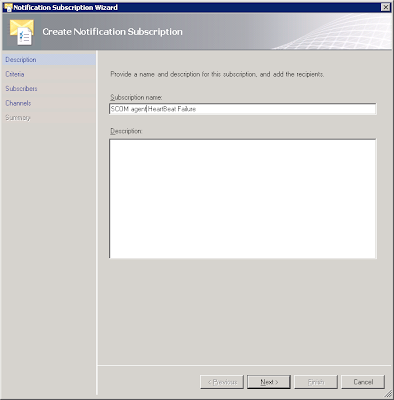 In the Notification Subscription Wizard, enter a name for the subscription and click Next
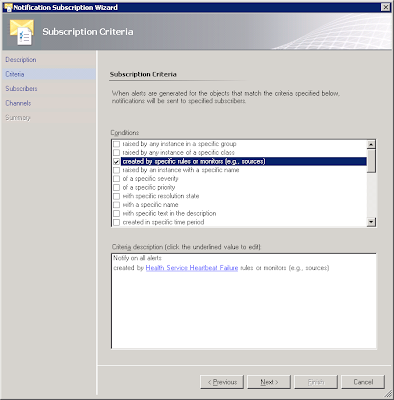 In the subscription criteria page, provide your filtering criteria and click Next to proceed
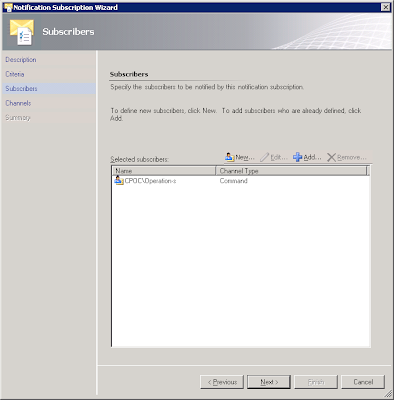
In the Subscriber page, add the subscriber that you have created earlier (please refer to Part 4 of this posting series if you missed out on the creating subscriber part). Click Next to proceed
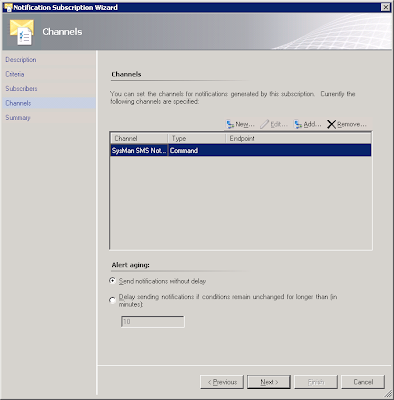 In the notification channel page, add the notification channel that you have created earlier
(again... please refer to Part 4 of this posting series if you missed out on the creating subscriber part).
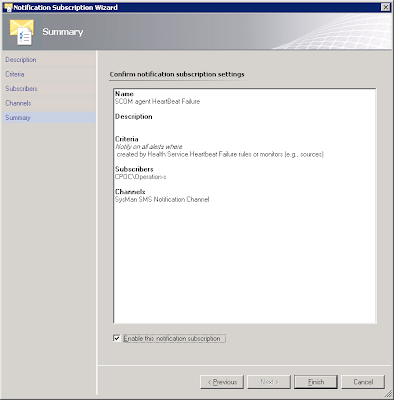 Finally, check the Enable this notification subscription checkbox and click Finish
what I would want to share is to trigger the notification channel on alert certain instances and target groups. You wouldn't want you Handphone to be bombarded with SMSes that is totally non-critical right.
In my example:
I will only trigger SMS alerts when certain the OpsMgr detected Health Service failures on business critical servers that is being monitored.
From the Operations console, navigate to Administration -> Notifications -> Subscription and select New -> Subscription
 In the Notification Subscription Wizard, enter a name for the subscription and click Next
 In the subscription criteria page, provide your filtering criteria and click Next to proceed

In the Subscriber page, add the subscriber that you have created earlier (please refer to Part 4 of this posting series if you missed out on the creating subscriber part). Click Next to proceed
 In the notification channel page, add the notification channel that you have created earlier
(again... please refer to Part 4 of this posting series if you missed out on the creating subscriber part).
 Finally, check the Enable this notification subscription checkbox and click Finish
OpsMgr SMS Notification with SysMan Integration - Part 4
A quick recap on what was covered so far, we have gone through:
In this chapter of my 5-part series, I will touch on the integration piece between OpsMgr & SysMan SMS Notification server.
 From the operator console, navigate to the Administration space.
Go to Administration -> Notifications -> Channel
Right click on Channel and select New channel -> Command
 In the Command Notification Channel Window, enter the name for the channel and click Next to proceed.
 In the Settings page;
For the Full path of the command line field; enter the path where you SysManSMS_IClient.exe resides in.
(eg: %Program Files%\SysManSMS\Iclient\SysManSMS_IClient.exe)
In the command line parameters field, enter the .lst file to send the SMS to your intended audience and the contents of your SMS.
(eg: MyUserList.lst $Data/Context/DataItem/AlertName$)
In the StartUp folder for the commandline field, enter the folder which your SysManSMS_Iclient.exe resides in
(eg:%Program Files%\SysManSMS\Iclient\)
 Once the configuration is completed, click Close.
 Right click on Administration -> Notification -> Subscriber and select New Subscriber
 In the Notification Subscriber Wizard, enter a user name and click Next
 In the schedule page, select Always send notifications or you can configure the schedule for the notifications to be sent
(eg: you wouldn't want the SMS to come in the middle of your good sleep)
Click Next to proceed
 In the Addresses page, click on the Add button to launch the Subscriber Address wizard
 In the Subscriber Address wizard, enter a name for the Address.
 In the channel page of the wizard, select Command as the Channel Type
For the Command Channel, select the notification channel that you have created earlier.
 In the schedule Notifications, configure your preferred notification schedule and click Next
 Back in the Subscriber Addresses page, click Finish
 Click Close once the process is complete
The steps above literally means that we have configured OpsMgr to be able to send SMS notifications to intended recipients (that was defined in the .lst file) which is done through executing SysManSMS_Iclient.exe with the necessary parameters passed in.
- Setting Up of Serial Over IP device that communicates with the GSM Modem device
- Setting Up Port Mapping from OpsMgr server to the Serial Over IP device
- Setting Up & Configure SysMan SMS Notification Server
In this chapter of my 5-part series, I will touch on the integration piece between OpsMgr & SysMan SMS Notification server.
 From the operator console, navigate to the Administration space.
Go to Administration -> Notifications -> Channel
Right click on Channel and select New channel -> Command
 In the Command Notification Channel Window, enter the name for the channel and click Next to proceed.
 In the Settings page;
For the Full path of the command line field; enter the path where you SysManSMS_IClient.exe resides in.
(eg: %Program Files%\SysManSMS\Iclient\SysManSMS_IClient.exe)
In the command line parameters field, enter the .lst file to send the SMS to your intended audience and the contents of your SMS.
(eg: MyUserList.lst $Data/Context/DataItem/AlertName$)
In the StartUp folder for the commandline field, enter the folder which your SysManSMS_Iclient.exe resides in
(eg:%Program Files%\SysManSMS\Iclient\)
 Once the configuration is completed, click Close.
 Right click on Administration -> Notification -> Subscriber and select New Subscriber
 In the Notification Subscriber Wizard, enter a user name and click Next
 In the schedule page, select Always send notifications or you can configure the schedule for the notifications to be sent
(eg: you wouldn't want the SMS to come in the middle of your good sleep)
Click Next to proceed
 In the Addresses page, click on the Add button to launch the Subscriber Address wizard
 In the Subscriber Address wizard, enter a name for the Address.
 In the channel page of the wizard, select Command as the Channel Type
For the Command Channel, select the notification channel that you have created earlier.
 In the schedule Notifications, configure your preferred notification schedule and click Next
 Back in the Subscriber Addresses page, click Finish
 Click Close once the process is complete
The steps above literally means that we have configured OpsMgr to be able to send SMS notifications to intended recipients (that was defined in the .lst file) which is done through executing SysManSMS_Iclient.exe with the necessary parameters passed in.
01 February 2010
OpsMgr SMS Notification with SysMan Integration - Part 3
In this posting, I shall share on how to install & configure SysMan SMS Server to work with the Serial-Over-IP device that we have configured earlier.
A quick recap on what was being shared in my previous postings; our OpsMgr SMS notification system consists of 3 major components being:
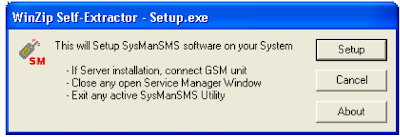 Run the Installation Setup application from the SysMan installer CD. In the Setup.exe prompt; click Setup to kickstart installation & configuration of the application.
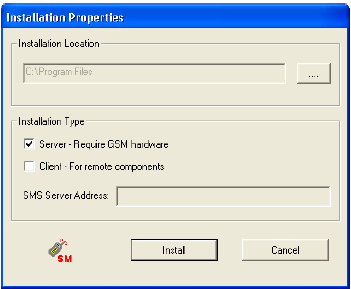 In the Installation Properties window, select the installation location and tick the Installation Type as Server - Require GSM hardware option.
Once you are ready; click on the Install button
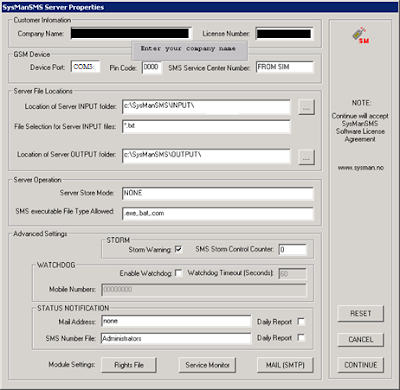 In the SMS Server Properties window; enter your Company Name and the License Number.
You will also need to enter the Device Port to map the COM port number that you have assigned to your Serial-Over-IP device earlier.
Once you are done; click CONTINUE
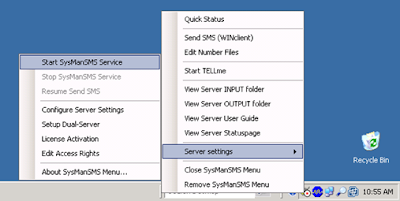 Once you are done; start the SysMan Service by right clicking on the icon in the System Tray and select
Server Settings -> Start SysMan Service.
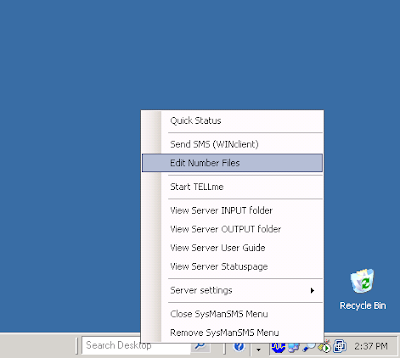 The next step that we will need to configure is to enter the necessary phone numbers which SysMan will send SMS notifications to.
Right click the SysMan systray icon and select Edit Number Files
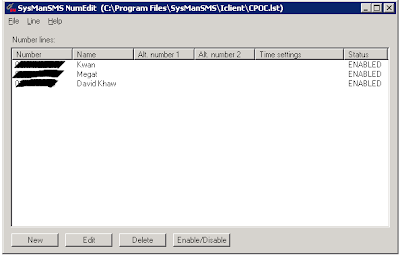 In the window, click New and add the Contact Number information for your target numbers which SysMan will send notifications to. Once you are done; you can save the Number files into a location folder.
In my scenario here; I have saved it to a file call CPOC.lst file
Now that we had our core components readily installed & configured, the next posting will finally show how we can configure OpsMgr to send SMS notification to Administrators via SysMan SMS Gateway Server.
A quick recap on what was being shared in my previous postings; our OpsMgr SMS notification system consists of 3 major components being:
- GSM Modem device - sends SMS notification to OpsMgr administrators
- Serial-Over-IP device - a bridge that connects to the GSM device via serial port and at the same time connected through COM Port mapping on the OpsMgr server
- OpsMgr server that triggers SMS notification commands the moment critical alerts are detected in the server.
 Run the Installation Setup application from the SysMan installer CD. In the Setup.exe prompt; click Setup to kickstart installation & configuration of the application.
 In the Installation Properties window, select the installation location and tick the Installation Type as Server - Require GSM hardware option.
Once you are ready; click on the Install button
 In the SMS Server Properties window; enter your Company Name and the License Number.
You will also need to enter the Device Port to map the COM port number that you have assigned to your Serial-Over-IP device earlier.
Once you are done; click CONTINUE
 Once you are done; start the SysMan Service by right clicking on the icon in the System Tray and select
Server Settings -> Start SysMan Service.
 The next step that we will need to configure is to enter the necessary phone numbers which SysMan will send SMS notifications to.
Right click the SysMan systray icon and select Edit Number Files
 In the window, click New and add the Contact Number information for your target numbers which SysMan will send notifications to. Once you are done; you can save the Number files into a location folder.
In my scenario here; I have saved it to a file call CPOC.lst file
Now that we had our core components readily installed & configured, the next posting will finally show how we can configure OpsMgr to send SMS notification to Administrators via SysMan SMS Gateway Server.
Subscribe to:
Posts (Atom)